
A new perspective on virtual production
Move your phone.
Move your scene.
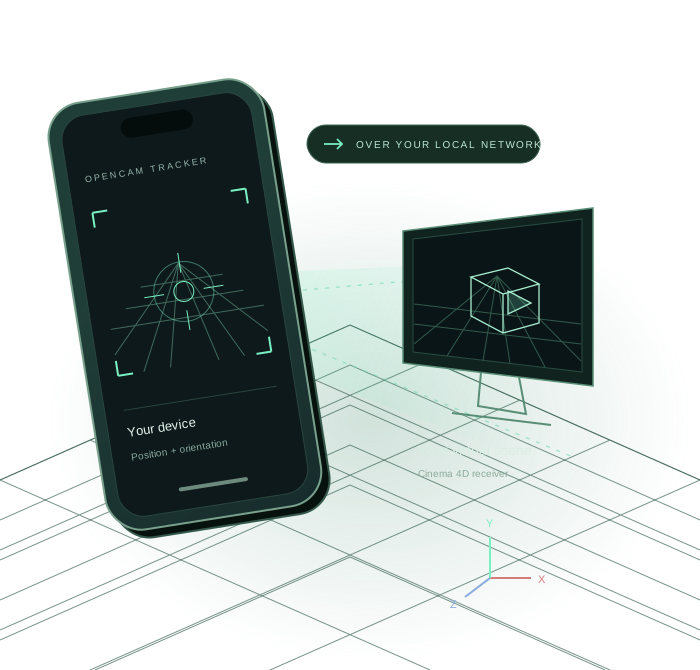
Bring camera motion into your virtual production setup. Connect OpenCam Tracker on iPhone or iPad to your Cinema 4D receiver over your local network.
Free app for iPhone & iPad.
App Store release in preparation.
Your first connection
From your device
to your virtual camera.
Use the same settings on both sides. Start with camera drive off, then verify that tracking reaches your receiver.
- 01 / CONNECT
Join the same network.
Connect your iPhone or iPad and the Cinema 4D computer to a network where they can reach each other. Allow local-network access when prompted.
- 02 / MATCH
Point to your receiver.
Enter the computer’s LAN IPv4 address in OpenCam Tracker. In Michele Virtual Production Studio, open Live tracking and match the UDP port and Camera ID.
- 03 / ALIGN
Check, align, then move.
Start sending and look for valid tracking in the receiver’s receipt log. Park the device, align to the virtual camera, then enable Drive camera from tracker.
On the receiver, listen on 0.0.0.0. On your device, enter the receiving computer’s actual LAN address. 127.0.0.1 points back to the same device.
A connection question?
We’re here to help.
Find answers for missing packets, stale tracking and camera setup.